The desktop compatibility check before you buy
Build an evidence trail for the exact CPU, motherboard, memory, storage and case on your list. A practical US buying worksheet, with clearly labeled examples.
Updated:
Begin with exact part numbers and a complete budget
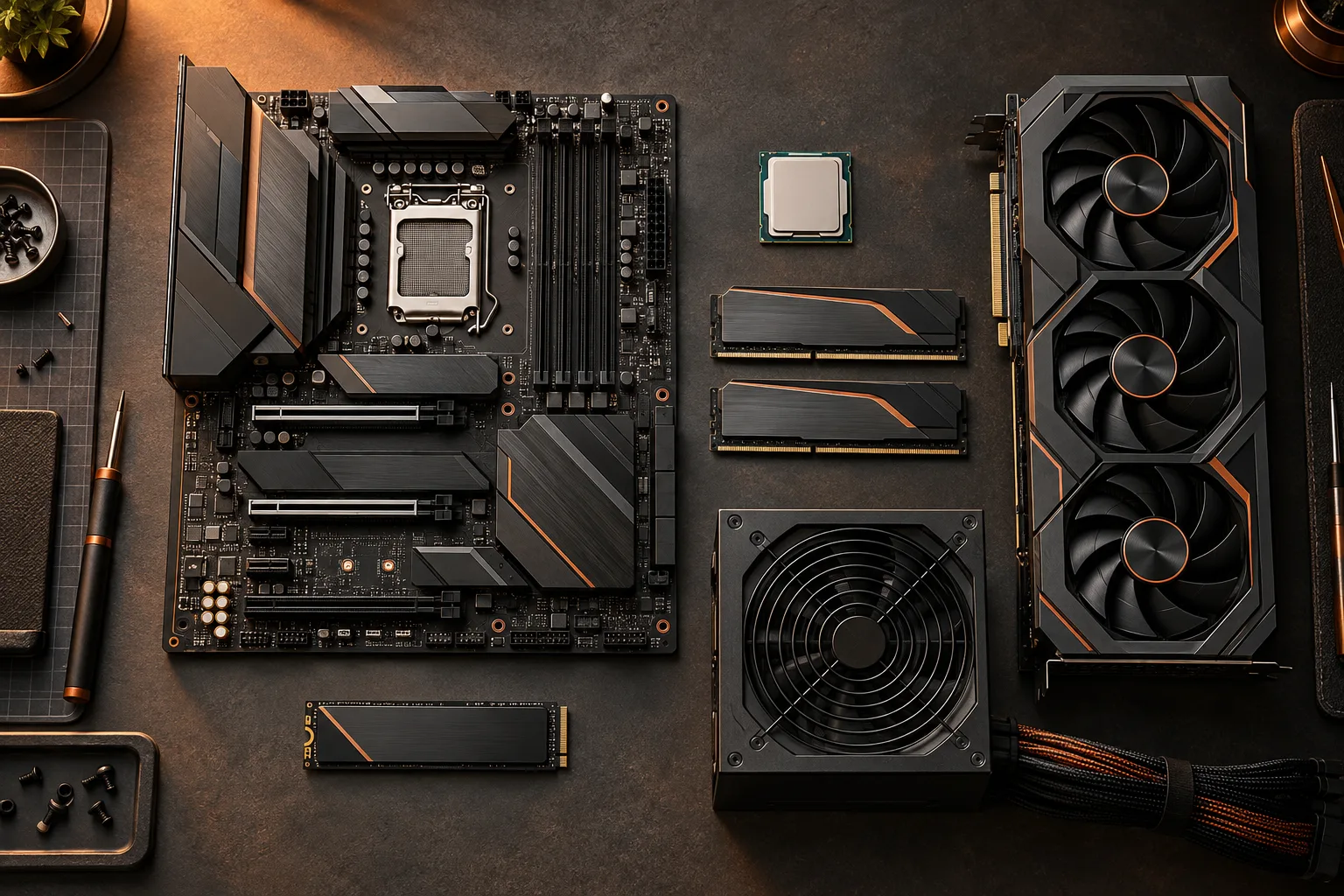
A desktop shopping list becomes useful when every line identifies a specific part. Write down the full processor model, motherboard model and revision, memory kit code, drive model, graphics-card version, case, cooler and power supply. Keep links to the manufacturer pages beside those names. A family name can hide differences in dimensions, memory generation, connectors or firmware support. This worksheet is a planning method, not a certification that an untested combination will work.
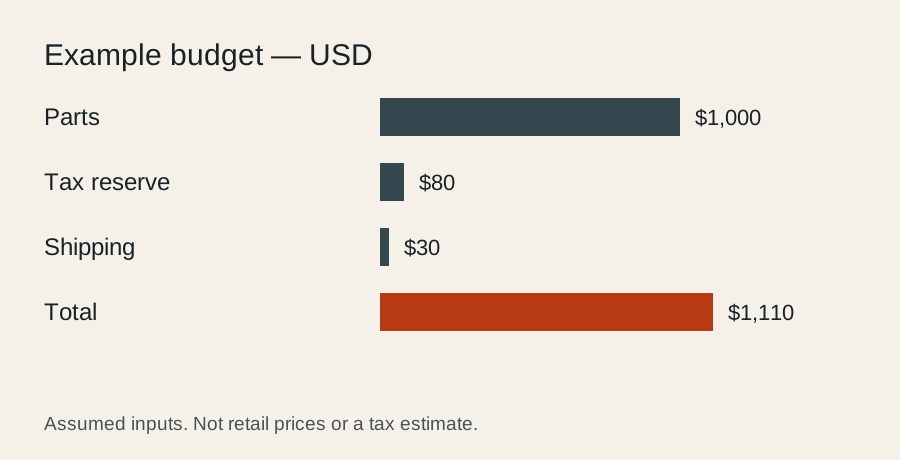
Separate the system budget from the component subtotal. In a hypothetical example, $1,000 of parts plus $80 reserved for tax and $30 for delivery totals $1,110. Against a $1,200 limit, that leaves $90. Those numbers are arithmetic examples, not market prices or a tax quotation. Add your actual checkout tax, shipping, operating-system needs and peripherals before deciding that a faster component fits the budget.
Intel: motherboard anatomy and form factors ?
Verify the processor against the board support page
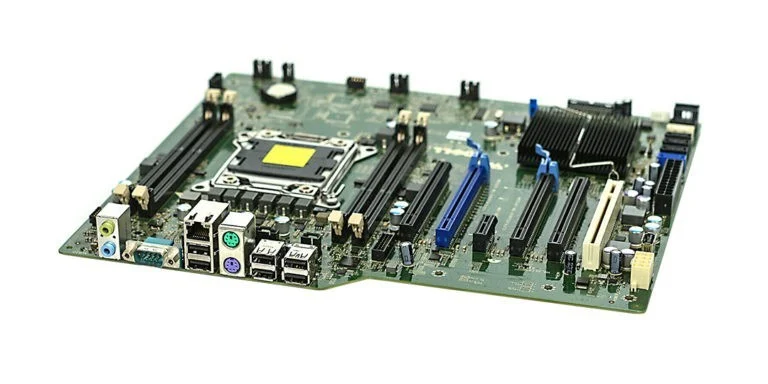
Start with the motherboard manufacturer’s CPU support list. Locate the exact processor and read any minimum BIOS version or revision notes. Record the version supplied on the board, or ask the seller how it can be confirmed. A matching socket name is an important check, but it is not the entire evidence trail. Save the relevant support page rather than relying on a retailer’s broad compatibility filter.
For a concrete, generation-specific example, Intel lists 12th, 13th and 14th generation desktop Core processors with LGA1700 and 600- or 700-series chipsets. Intel also warns that firmware updates may be required when upgrading between those generations. This example does not establish compatibility for other processor families. If a BIOS update is necessary, check the exact board’s supported procedure before buying a processor that may not boot with its installed firmware.
Intel: desktop processor platform compatibility ?
Match memory and storage to the exact slots
Copy the memory generation and supported module type from the board documentation. Then record the kit’s complete part number and the planned slot arrangement. The photograph below shows an older DDR3 module so you can see its label and keyed edge; it is not a DDR4 or DDR5 recommendation. Use the actual specifications for the new system, and do not assume a module fits because its broad shape looks familiar.
For storage, note the drive interface, physical size and the particular connector you intend to use. Read any manual notes about a storage socket sharing resources with another port. Planning the slot now is simpler than discovering after assembly that another device has changed the available configuration. Keep memory capacity, storage capacity and connector compatibility as separate rows in the worksheet.
Intel: motherboard anatomy and form factors ?

Check the full physical envelope
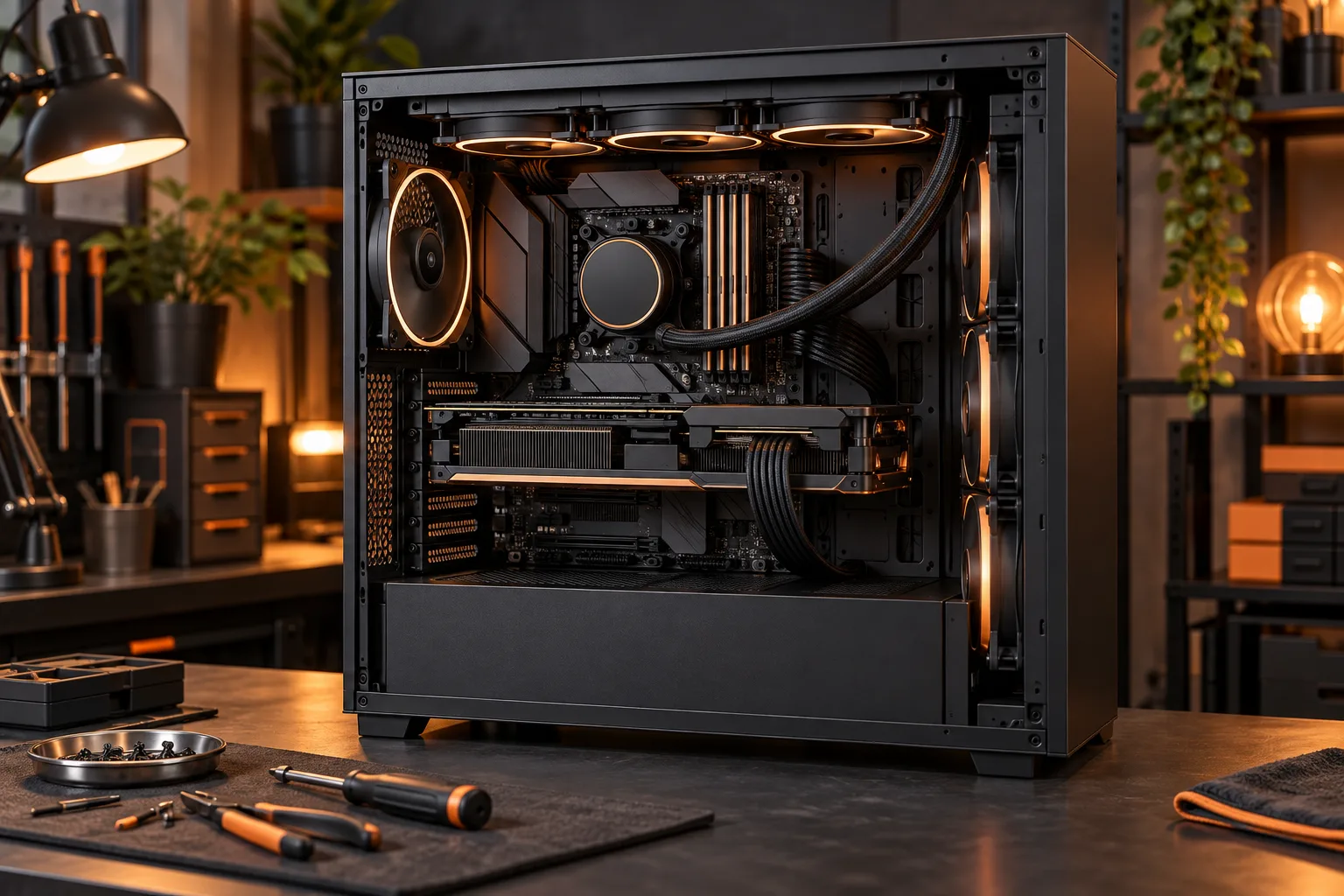
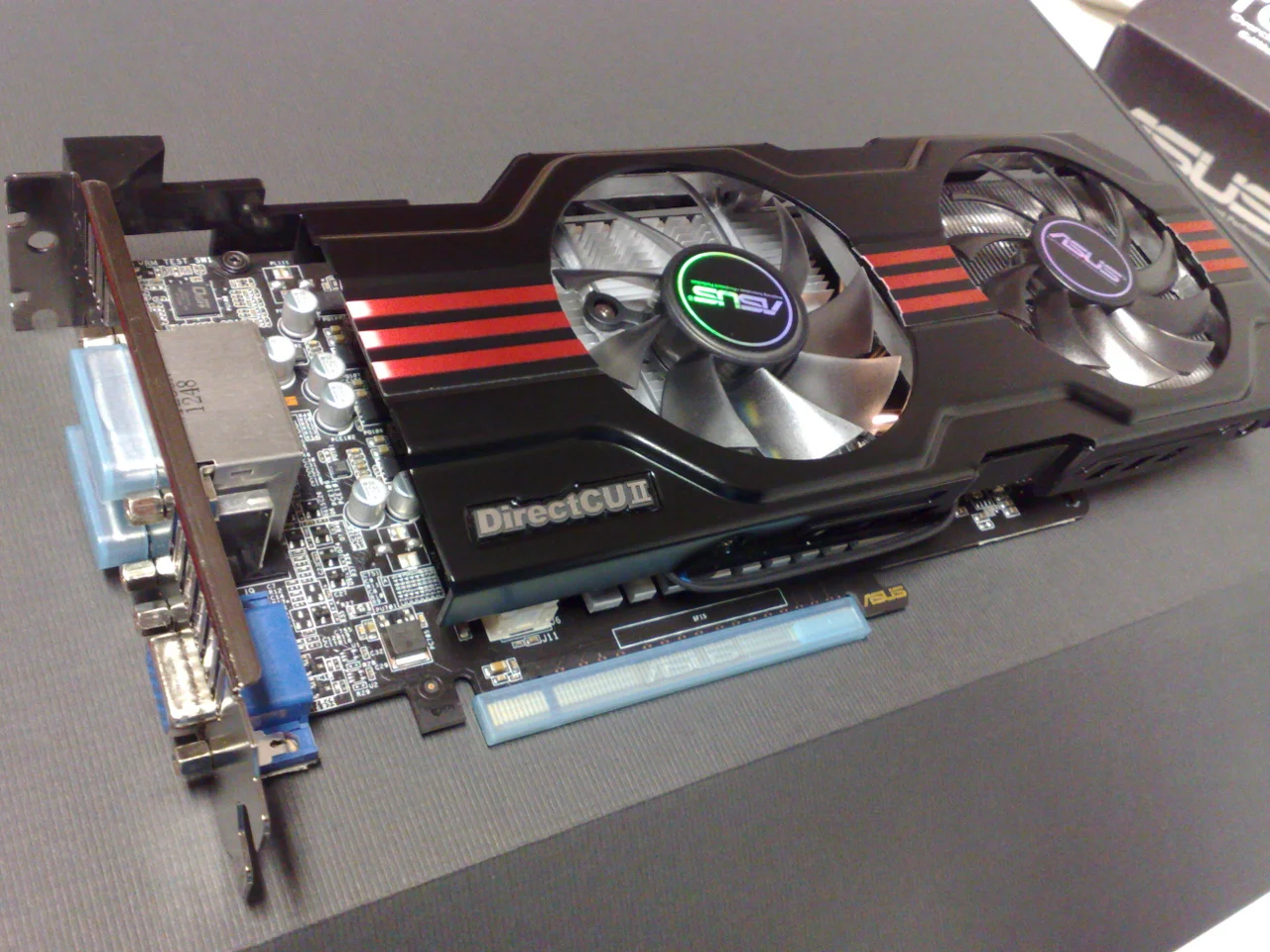
Compare the case’s supported motherboard formats with the chosen board. Then check graphics-card length, height and occupied slots against the available space after any front fans or radiator are installed. An advertised maximum card length may depend on the case configuration. Check the cooler height and nearby memory clearance as well; a single length measurement cannot describe every possible collision.
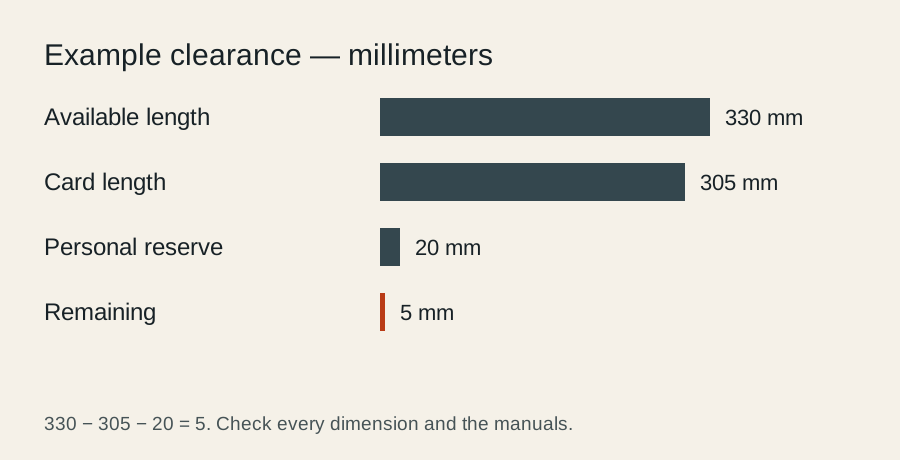
Consider a hypothetical measured space of 330 mm, a card length of 305 mm and a personal planning reserve of 20 mm. The arithmetic leaves 5 mm beyond that reserve. This is not proof of a safe installation: connector routing, support brackets and the manufacturer’s installation requirements still need checking. The clearance tool helps record this arithmetic, while the product manuals establish the actual conditions.
Intel: motherboard anatomy and form factors ?
Treat power connections as a separate compatibility check
Record the power supply’s exact model and the connectors required by the motherboard and graphics card. Do not reduce the decision to a single wattage number. Check the component manufacturer’s power recommendations for the intended configuration, and verify the cables supplied with the PSU against the PSU maker’s documentation. This guide does not provide a universal wattage recommendation.
Corsair publishes a model-specific cable compatibility chart. Use the applicable manufacturer information for the PSU you actually own; a connector that physically enters a modular socket does not by itself establish an approved cable pairing. If the documentation is unclear, stop and obtain confirmation before powering the system. These checks concern external connections to a closed PSU, not opening or servicing its internal electronics.
Leave unresolved items visibly unresolved
Use three worksheet states: confirmed, needs clarification and incompatible. A blank field should never silently become confirmed. For every confirmed item, retain the exact model, the source page and the date you checked it. For an unresolved item, write the question that a seller or manufacturer needs to answer. That makes a support conversation specific instead of asking whether an entire list “looks okay.”
Before checkout, revisit the component subtotal, return terms and any assembly service you plan to use. Replace a part only after checking the consequences for the other rows. A different motherboard may change memory or storage arrangements; a larger graphics card may change the case plan. The useful outcome is a documented decision trail with no hidden assumptions, not a green badge generated from incomplete information.
Intel: desktop processor platform compatibility ? Corsair: PSU cable compatibility chart ?