CPU compatibility needs a socket, chipset and BIOS check
Understand the three separate platform checks, document a supported BIOS path and avoid buying a CPU based on socket name alone.
Updated:
A matching socket is the beginning of the answer
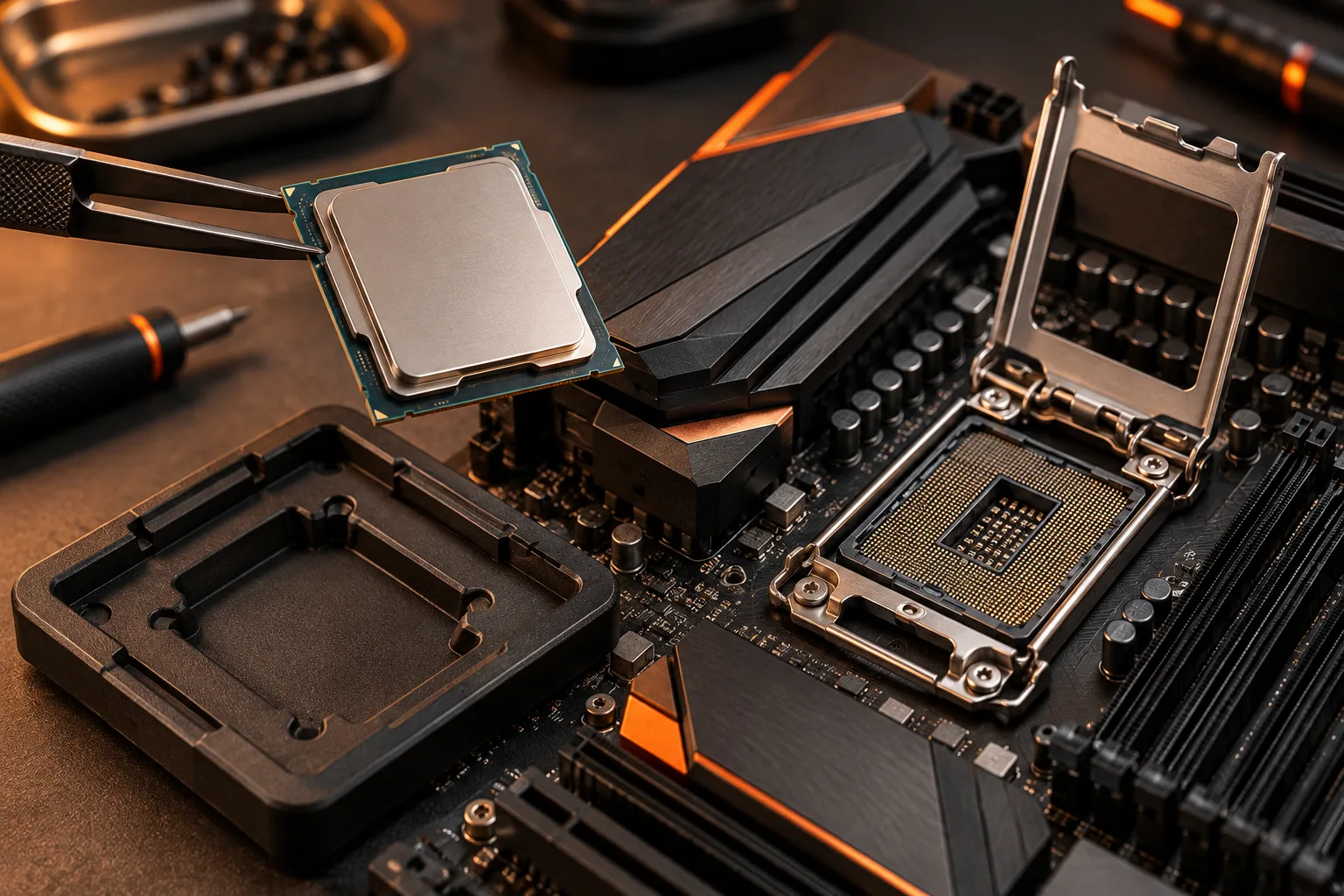
A processor purchase needs a matching physical platform, a supported motherboard implementation and firmware that supports the exact processor. Treat these as three separate checks. Passing one does not automatically pass the other two. Start with the full processor model and the exact motherboard model and revision, then use the board maker’s CPU support list to connect them. If the CPU is absent from the list, the socket name alone is not enough evidence to approve the combination.
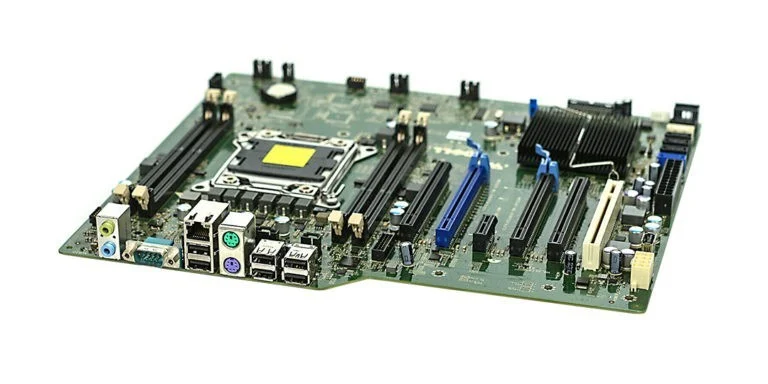
Intel provides a bounded example: its 12th, 13th and 14th generation desktop Core processors use LGA1700 with Intel 600- or 700-series chipsets, and generation changes can require firmware updates. This is not a rule for every Intel processor. The archival Dell T3600 motherboard pictured below shows where a processor sits, but it is not an LGA1700 compatibility example.
Intel: compatibility of desktop processor generations ?
Turn the support entry into a purchase record
Create a record with five fields: motherboard model, board revision, processor model, minimum supported firmware and the firmware actually supplied. Keep the link and date with that record. ASUS describes finding a board through its support site and opening the CPU and memory support area. The useful result is the exact support entry, not a screenshot of a general family landing page.
Distinguish an unknown shipped BIOS from a known unsupported BIOS. Both need resolution, but they are different problems. If a seller cannot establish the shipped version, record that uncertainty before payment. A listing that says ready for a processor generation may be helpful, but retain the precise claim and confirm that it applies to the revision and stock you are ordering.
ASUS: finding CPU and memory support lists ?

Plan the update path before removing the old processor
When an update is needed, the next decision is whether the board provides a documented way to perform it in your circumstances. Some products provide a model-specific firmware update feature, but this guide does not assume that every board can update without a working processor. Read the procedure for the exact model, including the supported file, required hardware and recovery guidance, before selecting an upgrade path.
For a conceptual example, a support list may require version B while a board ships with version A. The comparison establishes an update requirement; it does not establish that version B can be installed using the new processor. In your worksheet, keep firmware requirement and update method as separate rows. The letters are hypothetical placeholders, not actual BIOS release names or a universal ordering system.
Keep memory and graphics consequences in the same decision
A motherboard replacement can change the required memory type and kit arrangement. Use the memory label and the new board’s documentation to decide whether your existing modules remain usable. The pictured DDR3 module shows a physical label and keyed edge; it does not support a claim that DDR3 can migrate into a newer memory-generation slot. A processor budget that ignores a necessary memory replacement is incomplete.
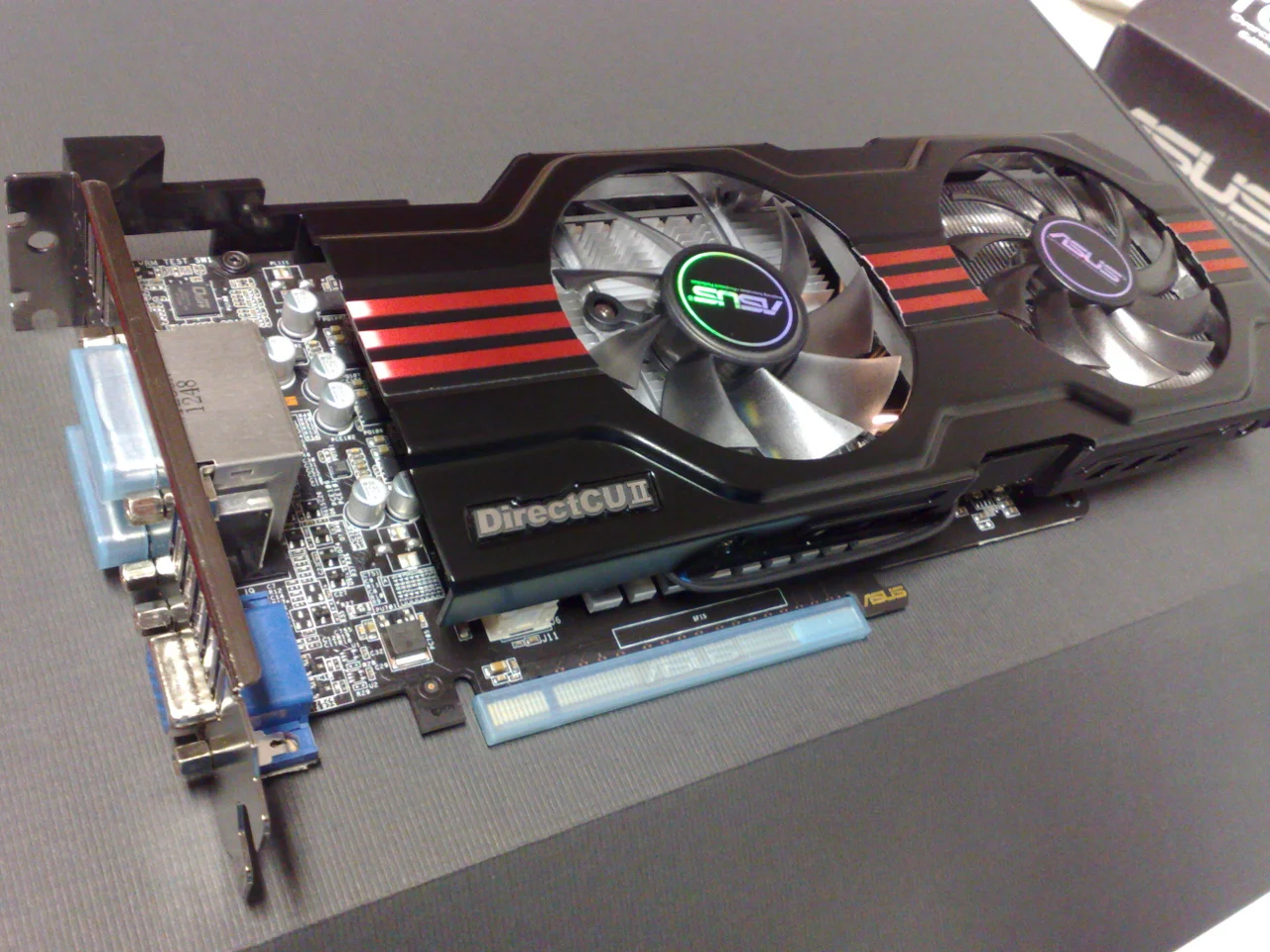
Likewise, write down how the proposed system will drive its displays. Do not assume that an existing graphics-card installation or a motherboard video socket answers that question for a different processor. The archival card photo shows a separate graphics device occupying an expansion slot. Determine the graphics capabilities of the exact processor and the display outputs of the selected system, then account for a discrete card if your application or platform requires one.
Approve the combination only after the open conditions close
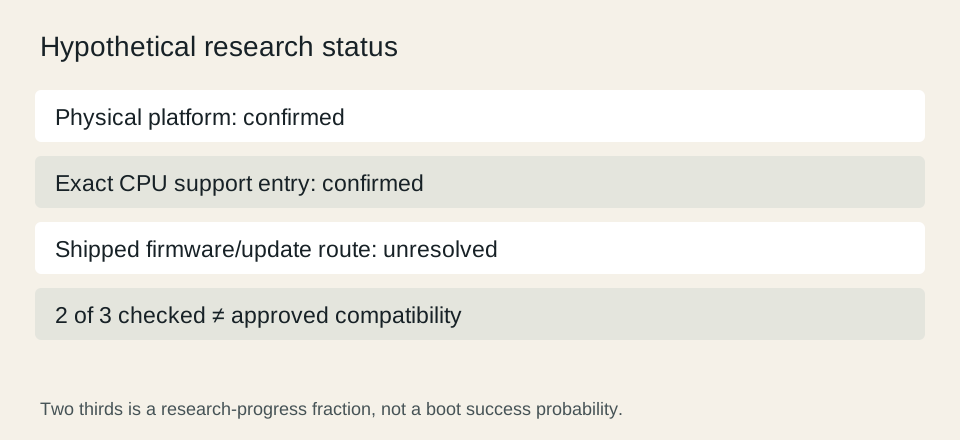
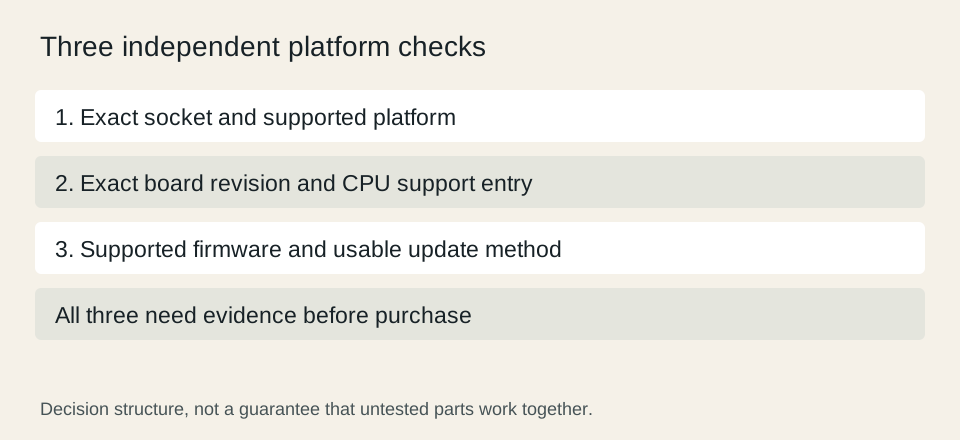
Use a three-row signoff: physical platform matches; CPU support entry matches the board revision; usable firmware path is documented. A hypothetical plan with two confirmed rows and one unresolved firmware row is still unresolved, even though two thirds of the worksheet is complete. A percentage is useful for tracking research, not for estimating the probability that the computer will boot.
Before ordering, save the manufacturer support links and review the complete affected-parts budget. A change from one board to another may solve the CPU support issue while introducing a memory or case change. The right stopping point is an evidence-backed combination with a workable installation plan. If a required compatibility claim cannot be established, choose a documented alternative or obtain the missing manufacturer information instead of guessing.
For a hypothetical budget consequence, a $250 processor upgrade that also requires a $130 motherboard costs $380 before memory, tax or delivery. Those assumed amounts are not retail prices. If the board change requires another memory kit, add that quoted amount before comparing the upgrade with a different platform.
Intel: compatibility of desktop processor generations ? ASUS: finding CPU and memory support lists ?